
Elite Content Manager (ECM) setup and troubleshooting
The Elite Content Manager (ECM) is CE’s Windows program for managing Elite PI PRO screens over your building network. These guides cover installing it, logging in, and fixing common problems. For the network side (ENET routers), see ENET router setup. For Elite PI Designer and Transfer, see Elite PI Designer and Transfer how-to guides.
What is the Elite Content Manager (ECM) and what can it do?
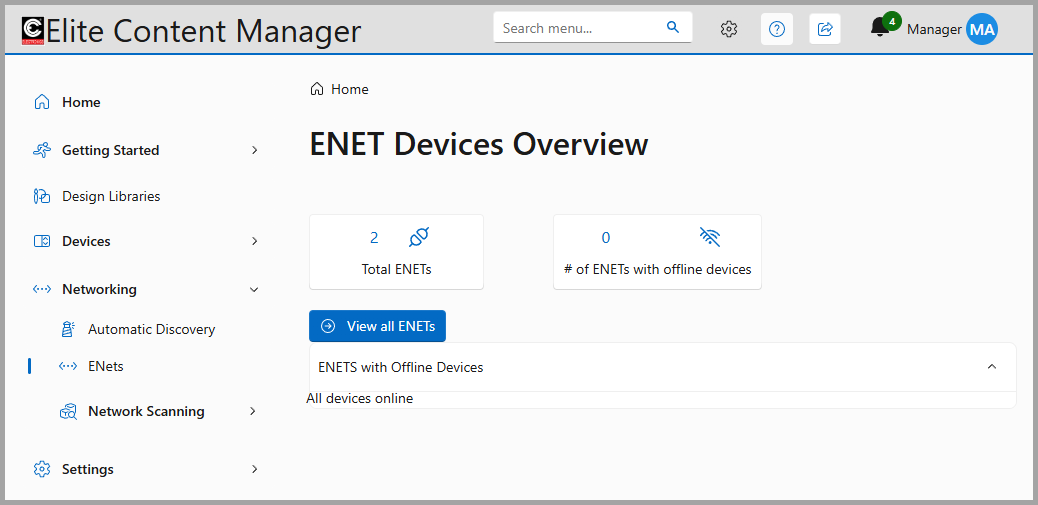
The ECM lets you manage your Elite PI PRO elevator screens from one program: it finds the screens through your ENET networking routers, shows which screens are online, keeps a library of your designs, and lets you create announcements for your tenants. The main menu has these sections:
-
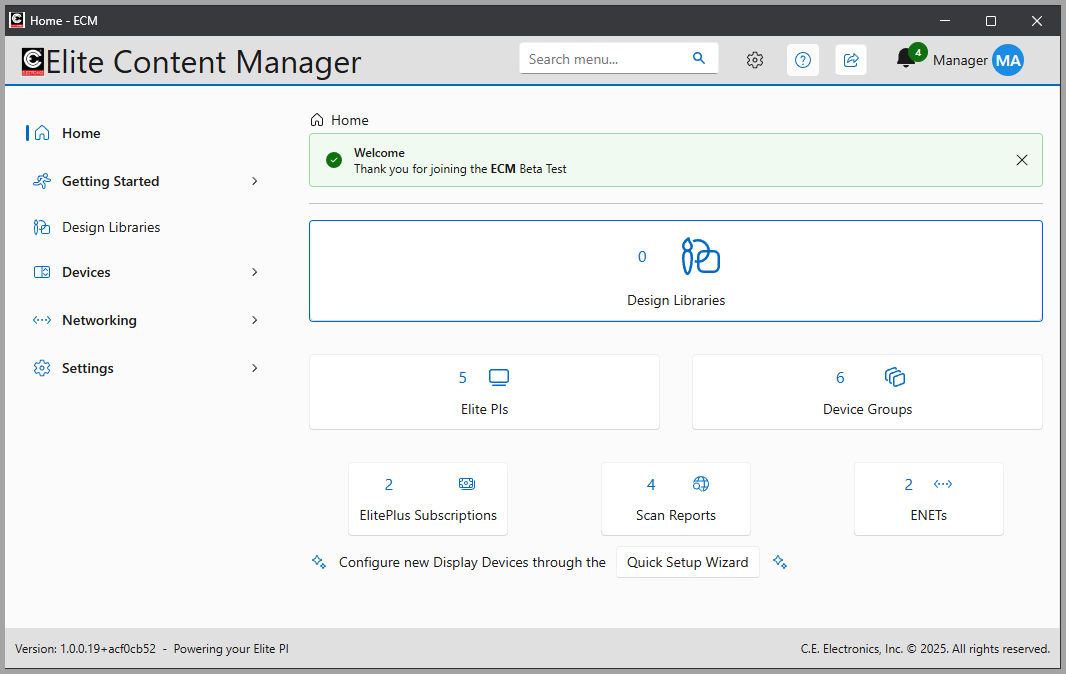
Home – an overview of your connected Elite PI PRO screens, with quick links to your design library, your screens, your Elite+ subscription status, and messages from CE’s software team.
-
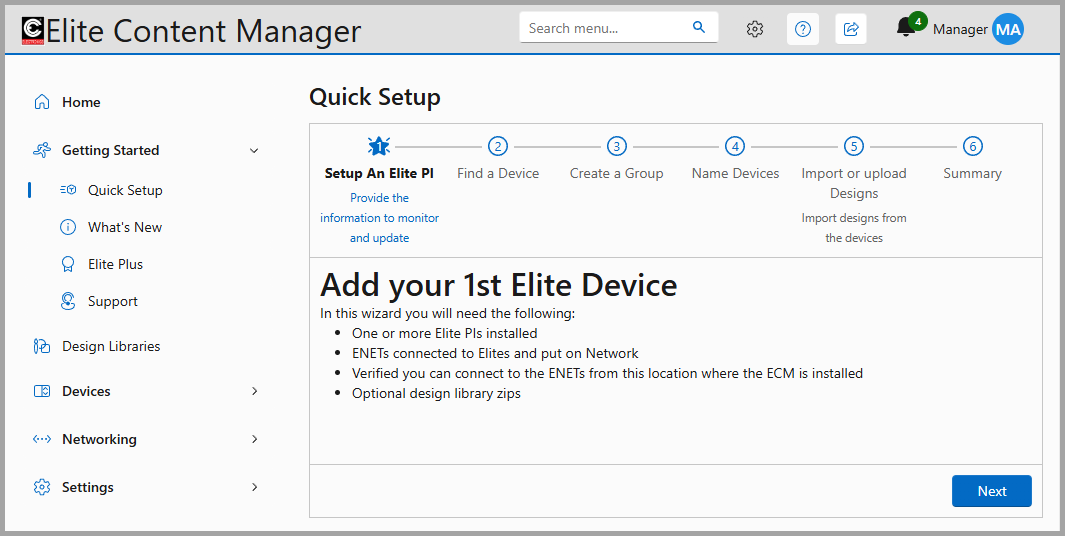
Getting Started – the Quick Setup wizard, which scans your network for ENET routers and adds the Elite PI PRO screens connected to them. This section also has What’s New (notes for each new software version), Elite Plus (CE’s Elite+ subscription for live news, stocks and weather) and Support (how to reach CE support).
-
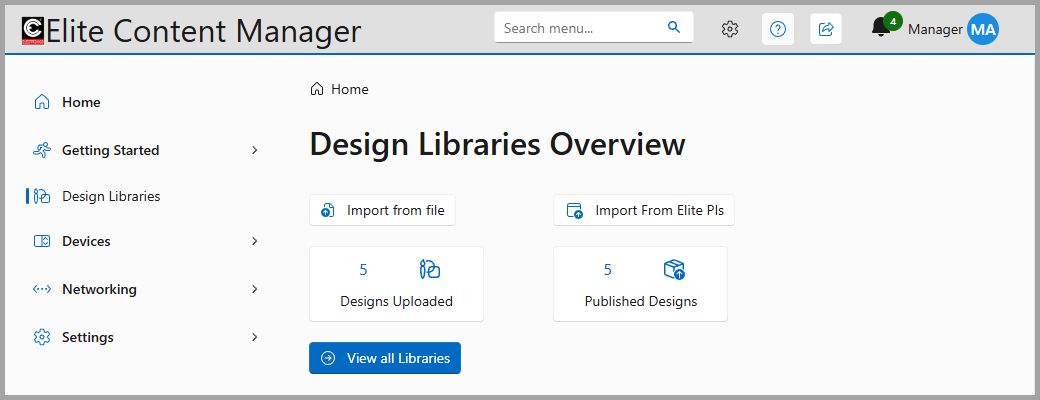
Design Libraries – every design you make for your screens is stored here. You can import designs, download the designs that are on your Elite PI screens now, and edit stored designs. Each change creates a new version of the design. When a version is uploaded to a screen it is locked; to change it, create a new version.
-
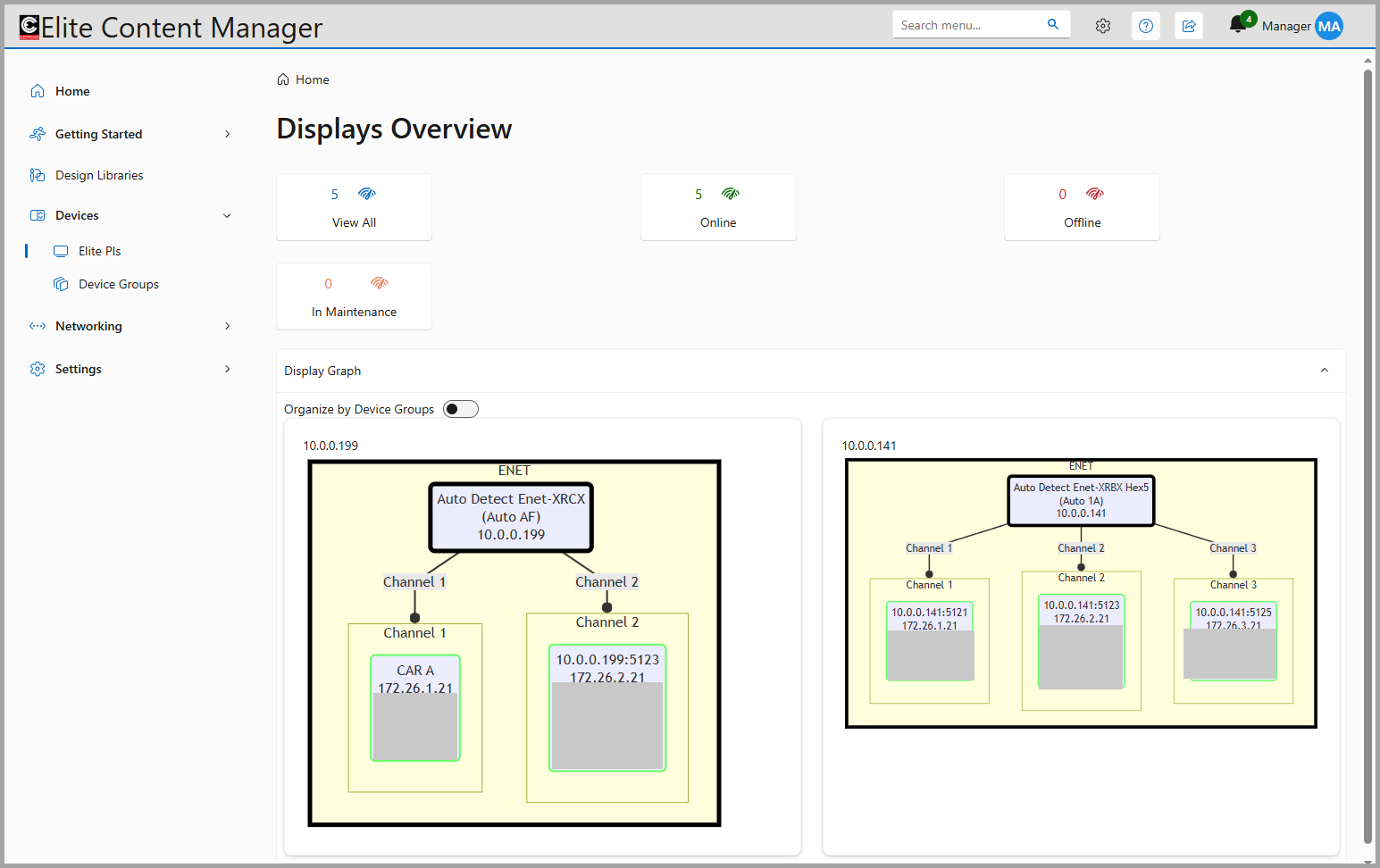
Devices – the status of all your Elite PI PRO screens: online, offline (not communicating) or needing maintenance or an update. The Display Graph shows which ENET router and channel each screen is connected to.
-
Networking – a list of your ENET networking routers. It is mainly used for first-time setup, troubleshooting and maintenance.
-
Settings – Elite+ subscriptions, the ECM system log, notifications and background operations, user permissions and account settings, and software updates for individual Elite PI screens.
How do I install the Elite Content Manager?
Download the installer, run it, accept the firewall rules, and open the ReadMe file at the end – it has the login you need the first time.
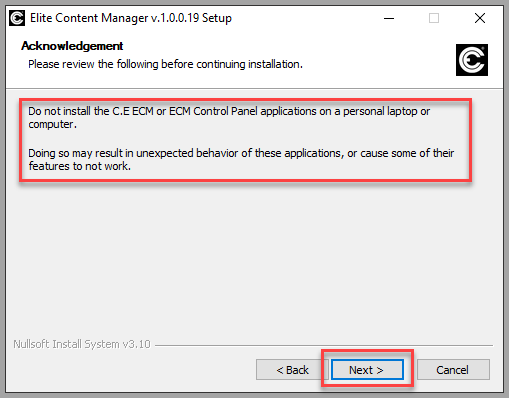
Choose the PC first. Install the ECM on a shared PC that stays on all the time (24/7), not on someone’s personal laptop or a computer that is shut down at night. The ECM and its Control Panel can behave unexpectedly on a personal computer.
-
Download the installer. There are two builds:
- ECM Stable build – tested more and recommended for most sites.
- ECM Beta build – newer features, but less tested.
-
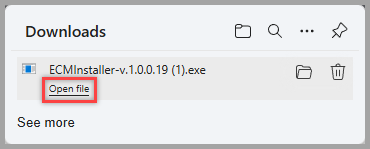
When the download finishes, click Open file.
-
The setup wizard opens. Close other programs and save your work, because a restart is recommended after installing. Click Next. Read the acknowledgement (do not install on a personal laptop or computer) and click Next.
-
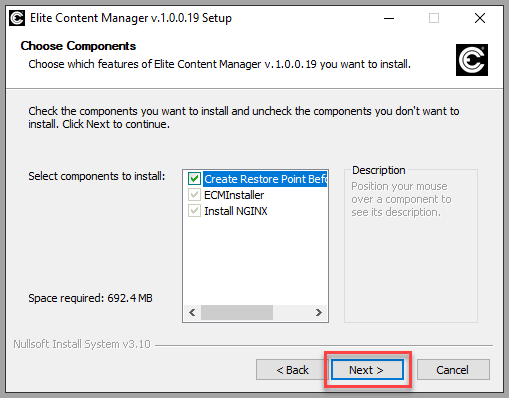
Leave the components selected and click Next.
-
Keep the default install folder,
C:\Program Files\CE Electronics\Elite Content Manager, and click Install.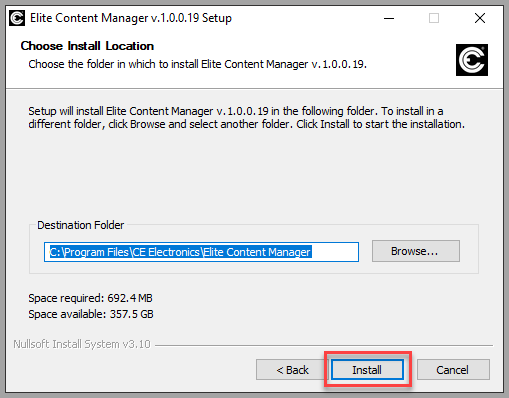
-
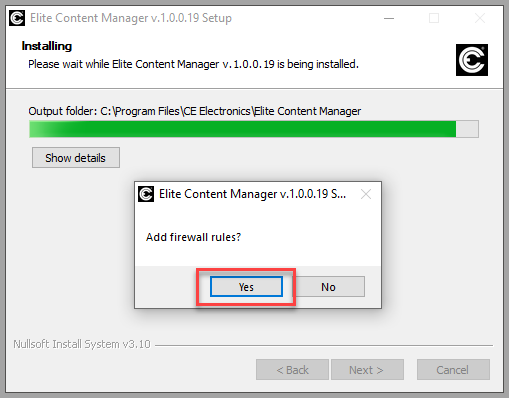
When asked Add firewall rules?, click Yes.
-
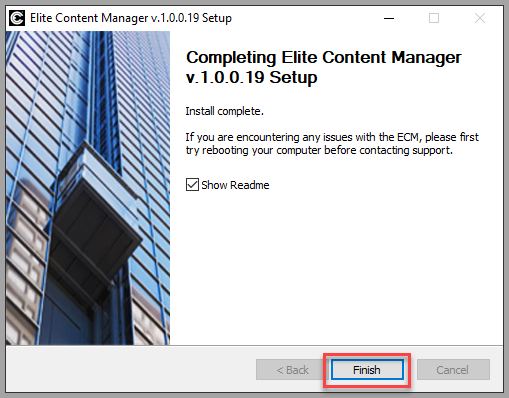
When setup finishes, make sure Show Readme is checked and click Finish. Keep the ReadMe – it has the admin login for the first time you open the ECM.
-
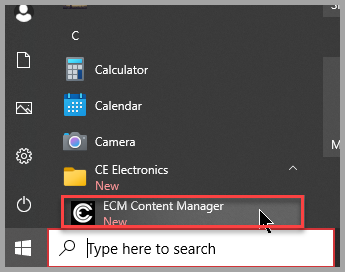
The ECM is now in your Start menu in the CE Electronics folder.
If you have problems after installing, restart the PC first, then contact CE support.
How do I log in to the ECM the first time and change the admin password?
Log in with the admin email and password from the ReadMe file, and the ECM then asks you to set a new admin password.
If you closed the ReadMe, it is in the install folder: C:\Program Files\CE Electronics\Elite Content Manager.
-
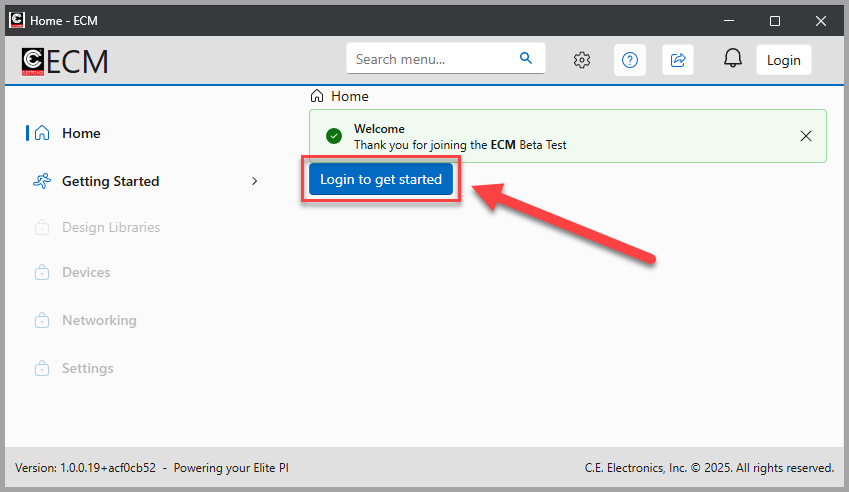
Open the ECM and click Login to get started.
-
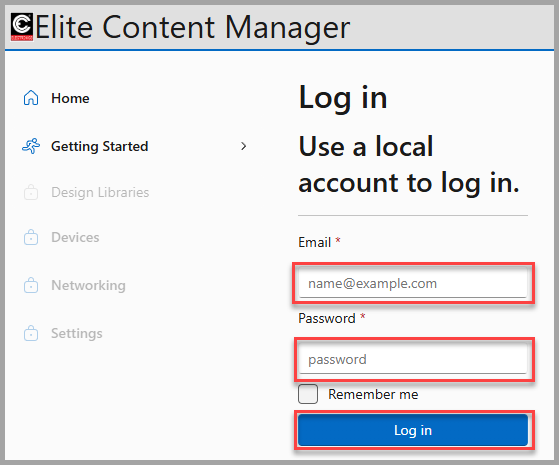
Enter the email and password from the ReadMe file and click Log in.
-
You are asked to change the default admin password. Enter the old password (from the ReadMe), then your new password twice, and click Update password. The new password must:
- be at least 8 characters long,
- contain at least one uppercase letter,
- contain at least one number,
- contain at least one special character,
- be typed the same way in both new-password boxes.
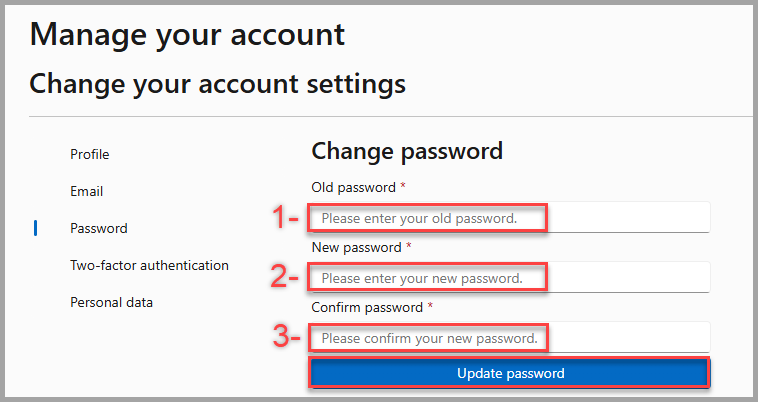
You are now logged in to the ECM as the admin. Keep the new password somewhere safe.
What do I do if I forgot my ECM login?
Use the ECM Control Panel to restore the admin account, then log in with the default admin login and set a new password.
-
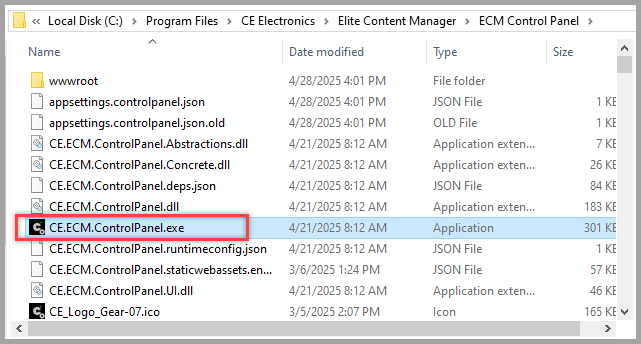
Open the ECM Control Panel. This is a separate program from the ECM itself. It is usually on the desktop next to the ECM icon. If it is not, open
C:\Program Files\CE Electronics\Elite Content Manager\ECM Control Paneland run CE.ECM.ControlPanel.exe. If Windows asks whether to allow the app to make changes, click Yes.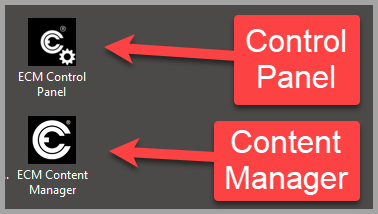
-
Click System Reset, then Restore Admin Account. This puts back the admin account with the default login shown on that screen (the same login as in the ReadMe file).
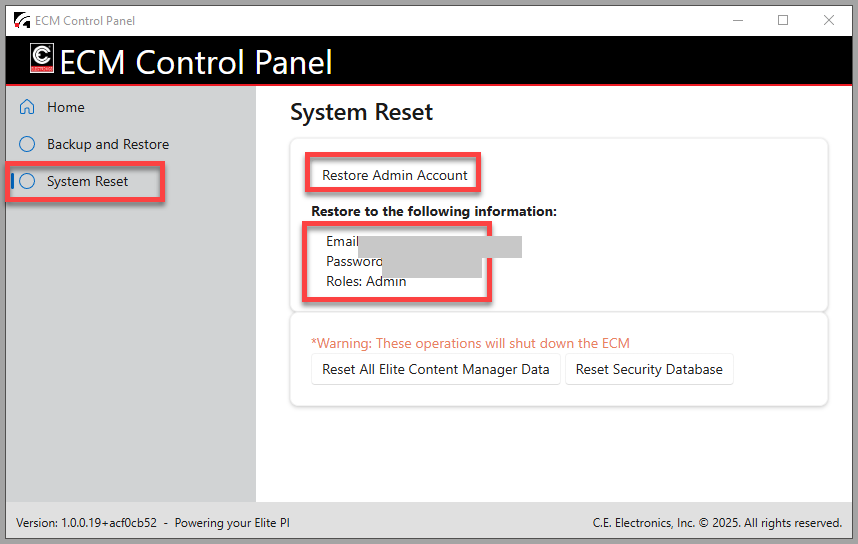
Do not use Reset All Elite Content Manager Data or Reset Security Database unless CE support asks you to – these operations shut down the ECM.
-
Go back to the ECM, log in with the admin login, and change the password again, the same as the first time: see How do I log in to the ECM the first time?
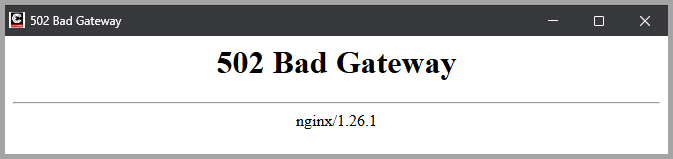
Why does the ECM show “502 Bad Gateway” and how do I fix it?
The PC stopped the ECM host service. Restart the ECM host from the ECM Control Panel, then open the ECM again.
-
Open the ECM Control Panel from its desktop icon, or from
C:\Program Files\CE Electronics\Elite Content Manager\ECM Control Panel(see the pictures in What do I do if I forgot my ECM login?). -
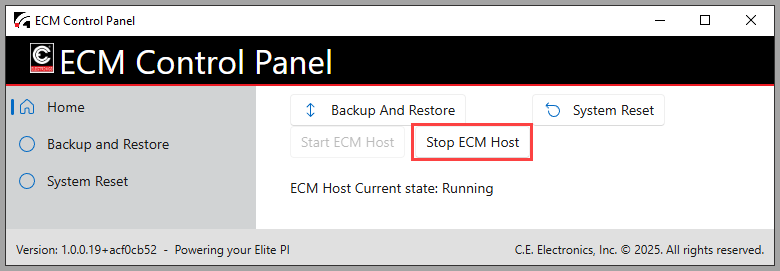
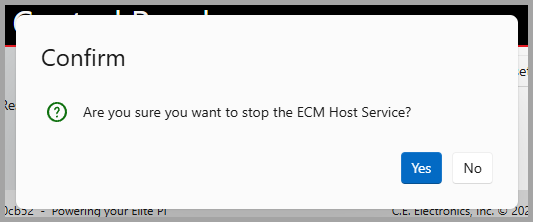
Click Stop ECM Host, then click Yes to confirm.
-
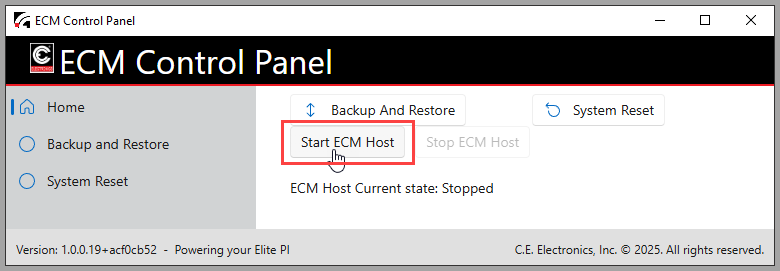
Click Start ECM Host, then click Yes to confirm.
-
Open the ECM again. It should now work normally.
If the error keeps coming back, check that the PC is not going to sleep or being shut down, then contact CE support.
How do I uninstall the Elite Content Manager?
Run uninstall.exe from the ECM install folder, click Uninstall, and restart the PC.
-
Open
C:\Program Files\CE Electronics\Elite Content Managerand double-click uninstall.exe. If Windows asks whether to allow the app to make changes, click Yes.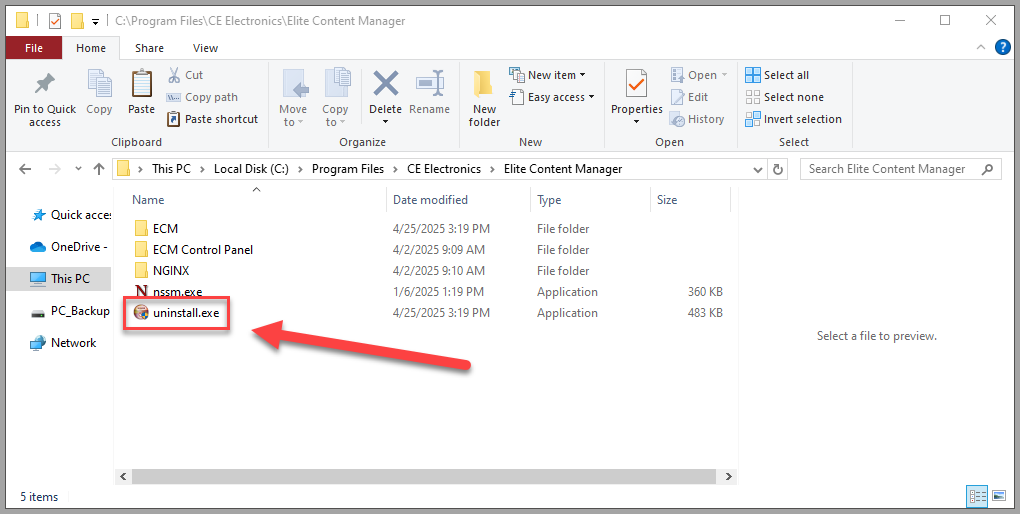
-
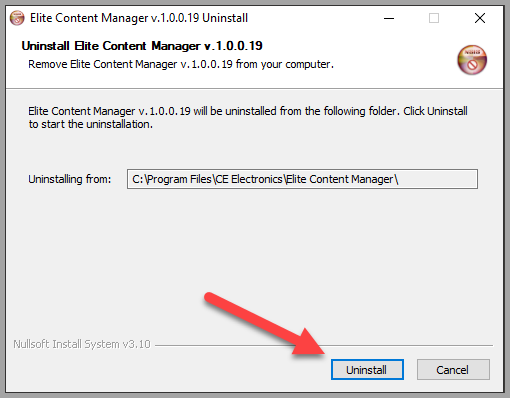
Click Uninstall.
-
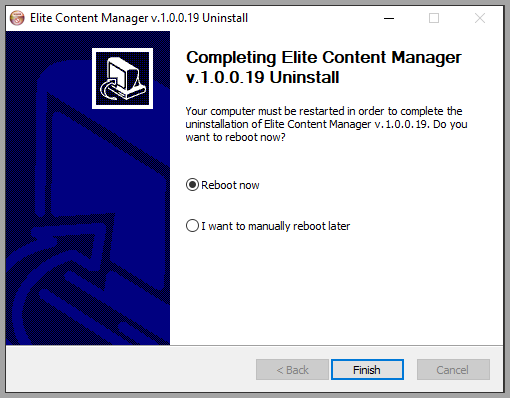
When it finishes, choose Reboot now (recommended) or reboot later, and click Finish.
Still have a question? Ask Elevate AI